HubSpot Marketing Automation: Workflows, Personalization and Reporting
Before choosing HubSpot for marketing automation, check which tasks you need to automate and which subscription supports them. A free account provides a starting point for managing contacts. A campaign involving branching workflows, automated marketing emails and lead scoring needs a closer look at paid features.
HubSpot connects automation with information in your CRM. A form submission, property change or other supported event starts a process. The workflow then follows your rules, such as sending an email, updating a record or creating a task for a salesperson.
The practical value depends on the process behind those rules. Start with a recurring task, define the desired outcome and check whether your data supports each decision.
Check HubSpot’s Automation Features Before Choosing a Plan
HubSpot offers different levels of automation across its products. Access to one automation feature does not establish access to every workflow action, reporting option or personalization tool.
Simple Automation and Full Workflows
Marketing Hub Starter includes simple automation associated with marketing emails. HubSpot’s current documentation permits up to ten actions per simple workflow and one simple workflow per enrolment trigger. Available actions include delays, follow-up marketing emails and task creation.
The full workflows tool requires an eligible Professional or Enterprise subscription. For automated marketing emails within the full workflows tool, HubSpot’s dedicated email documentation specifies Marketing Hub Professional or Enterprise. Check the requirements for your exact use case before purchasing.
For example, a short email follow-up and a process involving several CRM objects, branches and sales handoffs have different requirements. Write down the necessary actions first, then check each against the plan under consideration.
Marketing Contacts and Subscription Costs
In accounts using marketing contacts, contacts marked for marketing count towards your paid contact tier. Non-marketing contacts do not count towards this tier. HubSpot marketing emails and certain workflow marketing actions require marketing contact status.
Review how forms, imports and integrations set this status. Avoid marking an entire imported database for marketing without checking who should receive campaigns. Marketing contact status also needs separate consideration from subscription preferences and permission to send marketing.
Prepare Your CRM Data and Choose a Useful Goal
HubSpot already provides CRM records for contacts, companies and deals. An external CRM integration is relevant when another system also plays a role in your sales or customer management process.
Start with One Business Process
Choose a recurring problem with a clear outcome. For example, a software business might want trial users to complete their initial setup. A service business might want interested subscribers to book a consultation.
Define success as a recorded action, such as a completed setup or booking. Sending three emails describes the workflow’s activity. Completing the setup describes the customer outcome you want to measure.
Automation also supports customer retention work. For example, plan relevant onboarding messages after a purchase or a reminder before a renewal. Each process needs its own audience, timing and stopping conditions.
Check the Information Each Step Needs
Map the data required to run the process. A trial onboarding workflow might need a trial start date, setup status and account owner. A consultation campaign might need a stated service interest and booking status.
Decide where each value originates and who maintains the information. For example, a booking tool should supply the booking status used to stop promotional reminders. If staff update the status manually, include this task in their process.
Use consistent property values before adding branches. Separate values such as Training, Courses and Classes might describe the same interest but produce different results in a filter. Review imported records and agree on the values your team will use.
Define Segments with a Clear Purpose
Create audience groups around information affecting the message or next action. Useful distinctions include requested service, customer status and product usage. Avoid collecting extra details without a clear purpose.
For example, separate trial users who have completed setup from users who have not. The first group needs help using the product. The second needs help completing setup. Sending both groups the same reminder wastes the distinction your data provides.
Create a Workflow with Clear Entry and Exit Rules
For a first build, choose a workflow with one main purpose. Keep the route short enough to inspect without losing track of who receives each message.
Open the Workflow Builder
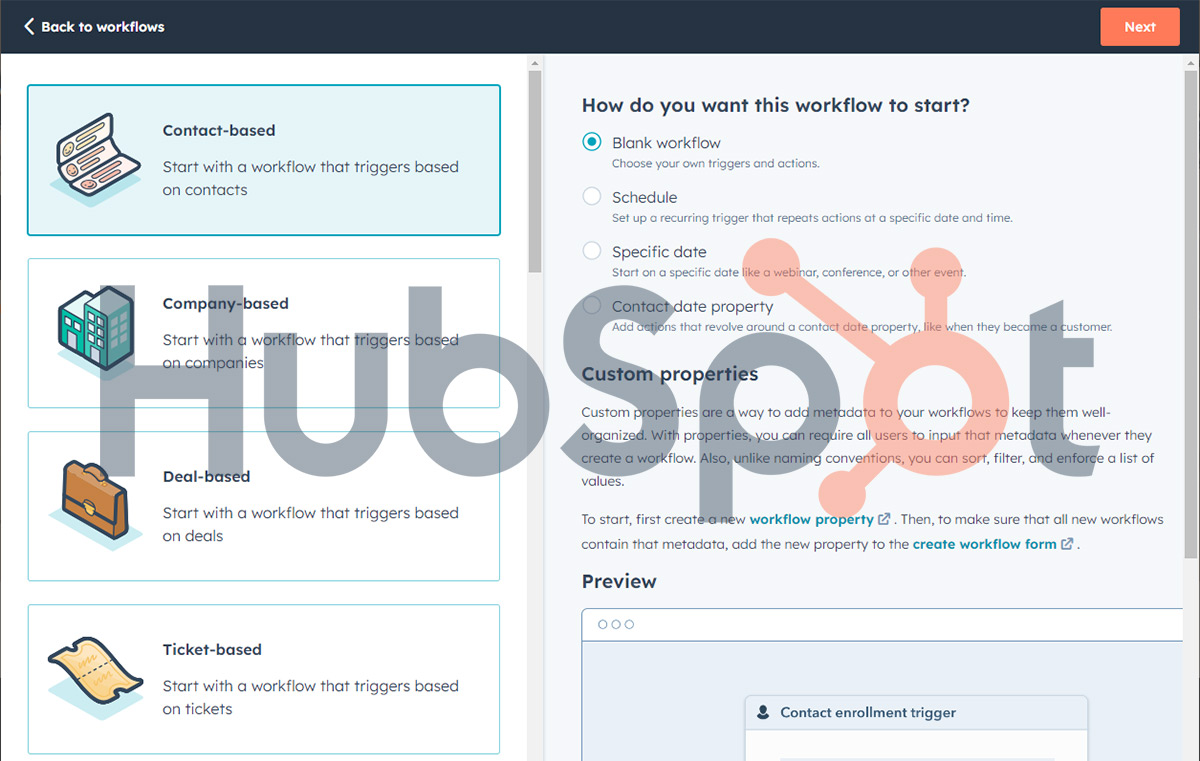
In HubSpot, go to Automation > Workflows. Depending on your navigation layout, open More first. Select Create workflow, then From scratch. HubSpot also provides templates for common processes.
Choose the relevant record type and enrolment trigger. Use a contact-based workflow when the process centres on individual subscribers. Name the workflow for its purpose, such as Trial setup follow-up, so colleagues understand the intended use.
Choose Between Events and Filter Conditions
An event trigger responds to something happening, such as a form submission. A filter trigger responds to a record meeting criteria, such as a property having a particular value.
For example, use a trial signup event to begin onboarding. Use filter conditions to identify contacts whose setup status is incomplete and whose trial start date falls within your chosen period. Check the available triggers and the information captured by your integration.
Review whether repeat participation makes sense. A welcome sequence normally needs different re-enrolment rules from a process responding to each new booking. Configure re-enrolment deliberately rather than assuming every repeat action restarts the workflow.
Add Actions and Delays
Workflow actions include sending emails, creating tasks and updating CRM information. Delays pause the process. Branches direct records along different routes according to your chosen criteria. Available actions depend on your subscription.
For a trial onboarding example, send an introduction explaining the first setup task. Add a delay, then check setup status. Send a practical reminder to users who still need help. Users who completed setup should follow a relevant next step instead.
Choose timings around the task. A customer waiting for an appointment tomorrow needs a different schedule from someone exploring a purchase over several weeks. Test your chosen intervals against the actual buying or onboarding process.
Set Exclusions and Stopping Conditions
Configure unenrolment rules so contacts leave when the process no longer applies. Contact-based workflows support controls involving workflow goals, suppression segments and changes to eligibility.
For the trial example, stop setup reminders after setup is complete. Consider excluding staff accounts and test records from the live campaign. Review other active workflows to prevent conflicting messages during the same period.
Before publication, decide whether to enrol records already meeting the criteria or only future qualifying records. Review this choice carefully when launching a workflow into an established database.
Personalize Messages Using Information You Trust
Personalization needs accurate data and a useful reason to vary the message. Start with a small number of meaningful differences and expand after checking the results.
Use Tokens with Fallback Values
HubSpot personalization tokens insert stored values, such as a contact’s first name or company name, into content. Missing values need a fallback. Without a default, a missing property leaves the token blank.
Preview emails using several contact records. Include someone with complete information and someone with missing fields. Read the surrounding sentence as well as the inserted value. A technically valid token still needs to fit naturally into the message.
Avoid relying on information you rarely update. An old job title or company name introduces an obvious error into an otherwise relevant email.
Distinguish Smart Content from Property Tokens
A token inserts a value. Smart content selects a different version of a subject line or content module according to a rule. These features solve different problems.
HubSpot requires Marketing Hub Professional or Enterprise for smart content in marketing emails. Email smart rules use contact segment membership or lifecycle stage. Smart content on website pages and blog posts has separate Content Hub Professional or Enterprise requirements.
For example, use a segment-based module to show a beginner resource to new users and an advanced guide to experienced users. Product recommendations need suitable data and configuration. Adding a personalization token alone does not create a recommendation system.
Use Lead Scoring to Support Sales Decisions
HubSpot’s lead scoring tool supports engagement scores, fit scores and combined scores. Engagement reflects actions and interactions. Fit reflects recorded characteristics relevant to your business. Contact scoring requires Marketing Hub Professional or Enterprise, with further restrictions for some features.
Start by defining what sales staff regard as a useful lead. A relevant company profile and a consultation request deserve different treatment from a newsletter signup. Choose rules reflecting those distinctions instead of assigning points to every available interaction.
Use score properties in segments, workflows or reports. For example, a qualifying score might trigger an internal notification for the contact owner. Agree on the follow-up process before activating the notification.
Review scored contacts with your sales team. Check whether high-scoring records produce suitable conversations and whether good prospects receive low scores. Revise rules when the score rewards activity unrelated to buying intent. Small lists with clear requests often need a simpler handoff process before a detailed scoring model.
Connect Other Tools Where the Process Requires Them
An integration should supply information or actions needed by the workflow. Identify those requirements before connecting systems and importing records.
Working with Salesforce
HubSpot’s Salesforce integration supports ongoing data syncing between the platforms. Access requires an eligible HubSpot Professional or Enterprise subscription, plus the appropriate Salesforce edition and permissions.
Agree on field mappings, record creation rules and which system should control shared values. Pay particular attention to ownership and lifecycle information used by workflows. Test a small set of records before depending on the sync for live campaign decisions.
Installing the integration does not immediately sync every existing record. HubSpot documents imports and automatic sync triggers as routes for bringing records across. Include a data migration or initial sync plan in your setup work.
Social Publishing and Reporting
HubSpot’s social tool supports connecting accounts including Facebook, Instagram, LinkedIn and X. Access requires Marketing Hub Professional or Enterprise. Supported account types and connection requirements differ by network.
Use the tool for supported publishing and reporting tasks. Connecting a social account does not establish a complete record of every follower’s activity or identify every visitor as a CRM contact. Check which interactions the integration records before using social activity in your campaign planning.
Measure Customer Outcomes Alongside Workflow Activity
Choose a main outcome for each process and review the steps leading towards the outcome. Email engagement helps diagnose a sequence, while bookings, activation or sales show progress towards its purpose.
Keep Your Measures Specific
Use a small set of measures with clear definitions:
- Outcome rate: Divide contacts completing the intended action by eligible contacts entering the process. Use a consistent period and allow enough time for completion.
- Email response: Review recorded clicks alongside completed forms, replies or bookings. Check delivery failures and unsubscribes as well.
- Commercial return: Include software, campaign and staff costs when assessing profitability. Revenue alone does not show the profit generated by the work.
Do not treat workflow completion as proof of a sale or successful onboarding. A contact reaching the final action has finished the defined path. Check the recorded customer outcome separately.
Account for Bot Activity
HubSpot’s marketing email analytics filter suspected bot activity, including security scanners and Apple Mail Privacy Protection. Filtering is enabled by default, but review the status on your sent emails before comparing results.
Open rates need particular care because privacy tools affect recorded activity. Avoid defining an engaged lead from opens alone. Compare email signals with meaningful customer actions and use consistent filtering when reviewing trends.
Use Attribution Reports within Their Limits
HubSpot attribution reports assign credit to recorded interactions according to the selected model. Different models distribute credit differently. Check which interactions and conversions your report includes before interpreting the result.
Deal Create Attribution and Deal Revenue Attribution require Marketing Hub Enterprise. Confirm access before building a reporting plan around these features. Attributed revenue also needs separate interpretation from additional revenue caused by the campaign. A reporting model assigns credit across recorded interactions without proving the campaign caused every resulting sale.
Test, Troubleshoot and Maintain the Process
HubSpot provides tools for checking enrolment criteria and simulating a record’s route through a workflow. Test several cases before publication, including a qualifying contact, an excluded contact and someone with missing data.
Check the path after the desired action occurs. A booked consultation or completed setup should produce the intended change in messages. Test personalization separately and inspect the destination pages reached from email links. Include a record with an existing owner to check whether your handoff preserves the intended responsibility or sends work to the wrong person.
After launch, use workflow history and action logs to investigate individual records. Check the workflow version involved, the action result and the timing. A contact entering a workflow does not guarantee delivery of every email. Eligibility and subscription status affect automated marketing email sends.
Assign an owner to review active workflows when offers, forms or connected systems change. Keep a record of each workflow’s purpose, required data and stopping conditions. HubSpot Academy’s free marketing automation course provides training on processes and workflow actions. Use the relevant lessons alongside a small test build before extending the process to a larger audience.