Website UX Improvements That Help Visitors Take Action
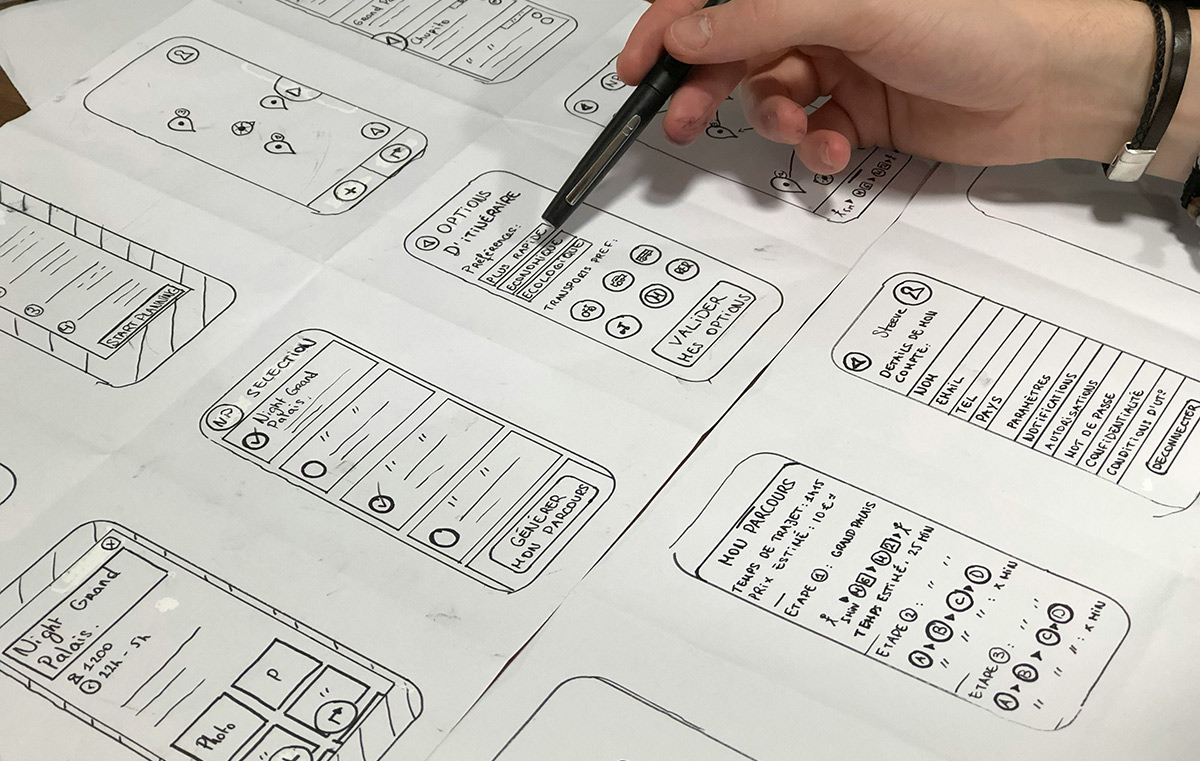
A website can look polished and still make it hard for visitors to find information or complete an order. Review the main tasks people come to your site to do, such as compare products, book an appointment or request a quote. Then check whether each task works smoothly on a phone and desktop.
Useful improvements often involve small details: clearer navigation, readable text, faster loading or a form with fewer unnecessary fields. Test these changes with real visitors and measure completed actions, rather than relying on appearance alone.
What to Check in Your Website Experience
User experience includes how easily people find information, understand the page and complete the action they came to take. Review three areas: usability, accessibility and visual design.
Make Important Tasks Easy to Complete
Use familiar labels in your navigation and group related pages together. Keep the main action visible, such as “Book an appointment” or “Request a quote.” If a page has several calls to action, make the primary one clear.
Check the full journey from the first page a visitor sees to the completed action. Test links, buttons, forms and confirmation messages. For example, after submitting a contact form, visitors should know whether it went through and when to expect a reply.
Check Accessibility
Accessibility helps people with different needs use your website. Write headings in a clear order, make text easy to read and ensure controls work with a keyboard. Give meaningful images concise alt text. Use empty alt text for decorative images, since describing decoration adds noise for screen reader users.
Check text contrast and do not use colour alone to communicate information. For example, mark a required form field with text or an icon as well as a colour change. W3C guidance explains how to choose alt text based on the role and meaning of each image.
Use Visual Design to Support the Content
Keep fonts, colours and spacing consistent across pages. Use images that help explain the product or service. Remove decorative elements that compete with the main information or push key details far down the page.
Check headings, buttons and body text at common screen sizes. Visitors should be able to scan the page and understand what to do next without zooming or hunting for the main action.

Improve Loading and Page Stability
Slow pages and shifting layouts disrupt the task a visitor is trying to complete. Start by testing your most important pages on both mobile and desktop. Focus on pages tied to sales or enquiries, such as product pages, booking pages and forms.
Use Core Web Vitals to Find Performance Problems
Google’s Core Web Vitals measure loading, responsiveness and visual stability. The current metrics are Largest Contentful Paint (LCP), Interaction to Next Paint (INP) and Cumulative Layout Shift (CLS). They help identify whether the main content appears promptly, the page responds to input and elements stay in place while the page loads.
Check real user data where available, then investigate pages with poor results. A large hero image, a slow server response or a script delaying buttons may be responsible. Improving every score to a perfect result is not the goal. Focus on problems visitors encounter while using the page.
Resize and Compress Images
Upload images close to the size they appear on the page. A photo several thousand pixels wide is often unnecessary in a small card or thumbnail. Compress image files and choose a suitable modern format when your site supports it.
Load images lower on a long page only when visitors are likely to reach them. Keep the main image and other primary content available without requiring a visitor to interact first. After changing image settings, check image quality and page behaviour on a phone.
Use Caching Carefully
Caching stores copies of some files or pages so the server does less repeated work. Your hosting service or content management system may offer caching settings or a plugin. Enable one approach at a time and test key pages after each change.
Clear or refresh the cache after updating a page if visitors still see old content. Avoid adding multiple caching tools without checking how they interact, as conflicting settings can cause pages or forms to behave incorrectly.
Design for Phones and Larger Screens
Responsive design adjusts the same page to fit different screen sizes. Check more than whether the page fits. Try the main tasks on a phone: open the menu, read product details, use the form and complete checkout.
Start With the Small Screen
A mobile first approach means deciding what visitors need on a small screen before adding wider layouts and extra elements for desktop. Keep the main information near the top, make buttons easy to tap and avoid making visitors scroll sideways.
Google uses the mobile version of a site for indexing and recommends responsive design as an approach that is easier to maintain. Keep the key content and headings available on both mobile and desktop. Test your site on actual devices when possible, since browser previews do not reveal every issue.
Check Layout Changes at Different Widths
Responsive layouts use CSS media queries to change presentation at different viewport sizes. Test the points where columns stack, menus change and text wraps. Look for clipped buttons, overlapping elements and text that becomes too small.
When a page changes layout, keep the reading order logical. A visitor using a screen reader or keyboard should encounter content and controls in a sensible sequence.
Test Changes and Measure Useful Actions
Use feedback and behaviour data to decide what to improve. Start with a question, such as “Do visitors find the booking form?” or “Which step causes people to leave?” Then choose a test suited to the question.
Ask Visitors to Complete a Task
Give a few people a specific task, such as finding a price or submitting an enquiry. Watch where they pause, click or go back. Ask what they expected to happen. A small test often reveals unclear labels or missing information more directly than a general request for feedback.
Collect feedback from customer support, sales staff and people who use the service. Repeated questions may point to details the website should explain more clearly.
Use A/B Tests for Focused Comparisons
An A/B test compares two versions of a page or element, such as a headline or button label. Change one main element at a time and decide in advance which action will count as success, such as a completed purchase or submitted enquiry.
Do not treat a small difference from a few visits as proof. If traffic is limited, use the test as one source of evidence alongside user feedback and task completion checks.
Track Actions That Matter to the Business
Set up analytics to record meaningful actions, such as purchases, completed bookings or submitted forms. In Google Analytics, events can be marked as key events. A key event can also be used to create a conversion in Google Ads when the accounts are linked.
Review the path to each action. If visitors reach a product page but do not add an item to the cart, inspect the product details and purchase options. If people start a form but do not finish, check its length and whether each field is necessary. Use analytics to find where to investigate, then confirm the issue through testing.